
 Diane
Diane
There comes a time when a program has outlived its usefulness and the next logical move is to uninstall it. But the choice to remove a program goes beyond its usefulness. Uninstalling a program is also done when you’re experiencing a shortage in storage space or the program is no longer compatible with your operating system. Take for example 32 bit apps that are no longer supported by macOS Catalina.
One of the shortfalls of a macOS is that these do not have a built-in uninstallation feature which makes removing programs a bit tricky. To completely remove a program, you don’t only have to uninstall it, but you also must remove its cache, logs which is stored in your Mac’s hidden folders.
To completely remove a program from your Mac, a visit to the developer’s site for detailed instructions is advised. However, not all developers provide this information. Which can be troublesome since you must research this information online or get firsthand information from people who have done it.
How to Uninstall Programs on a Mac Manually
The good thing about downloading programs from the Mac App Store is that these are ‘sandboxed.’ All supporting files included in the program are stored in their individual Container folder which isolates it from the rest of the system.
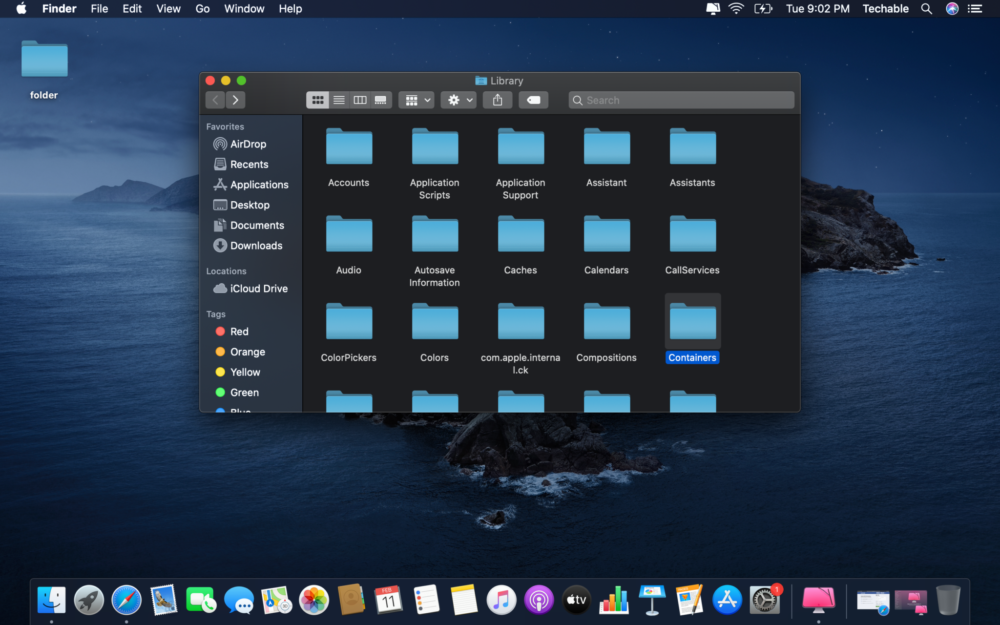
Uninstalling Programs from the Mac App Store
- On the menu bar select ‘Go’
- From the dropdown menu click ‘Applications’
- Select the program and move it to the Bin
- Click ‘Go’ on the menu bar
- Hold down the ‘Option’ and select ‘Library’
- Locate ‘Containers’
- Select the service folder of the program to be deleted
- Empty the ‘Trash Bin’
Uninstalling from non-Mac App Store Programs
Programs downloaded directly from the developer’s site are not stored in a single container. This makes visiting the developer’s site for instructions on how to uninstall the program very important. In case the information is not available, then you could follow these steps to manually uninstall the program.
- On the menu bar select ‘Go’
- From the dropdown menu, select ‘Applications’
- Drag the program to the ‘Trash’
- Click ‘Go’ on the menu bar
- Hold down the ‘Option’ and select ‘Library’
- Find and locate all files, folders associated with the program
Uninstalling Programs Using CleanMyMac X
Good thing, there are professional tools that makes removing programs quick and easy.
Step 1. Go to Launchpad and run CleanMyMac X
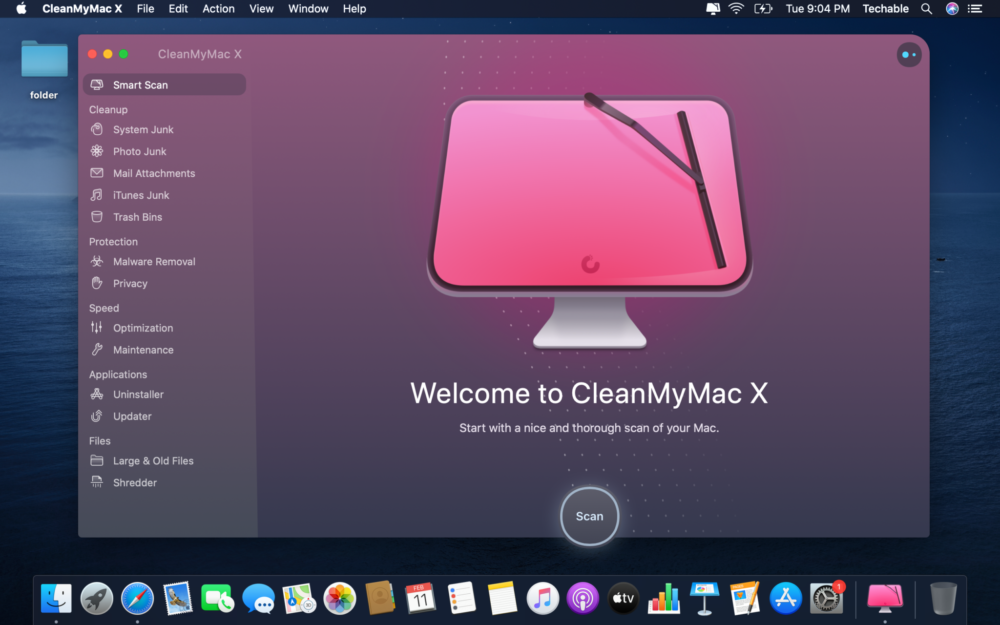
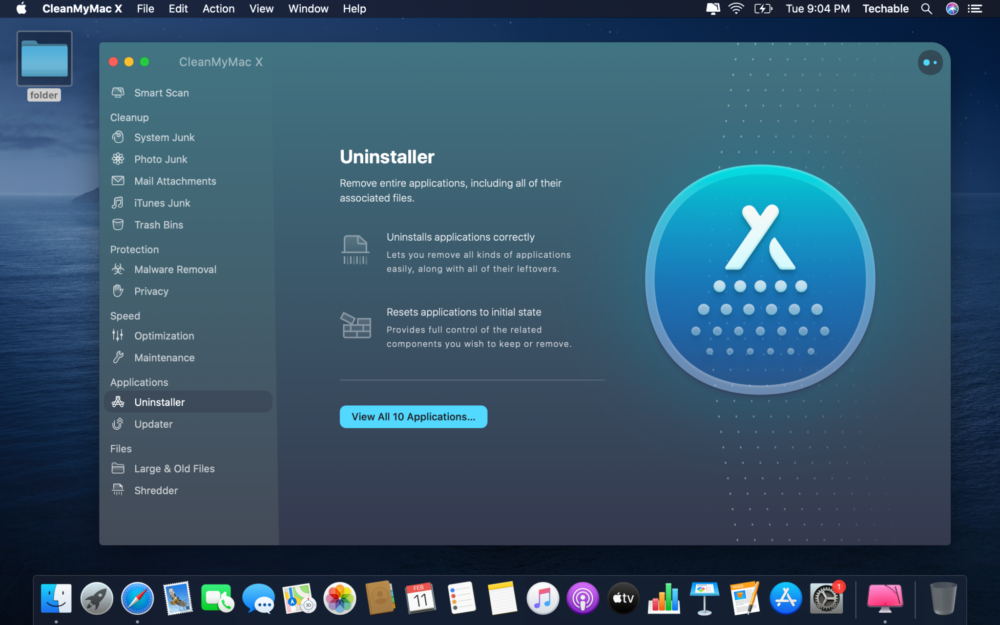
Step 2. Under ‘Applications’, select ‘Uninstaller’
Step 3. Select the program and click uninstall
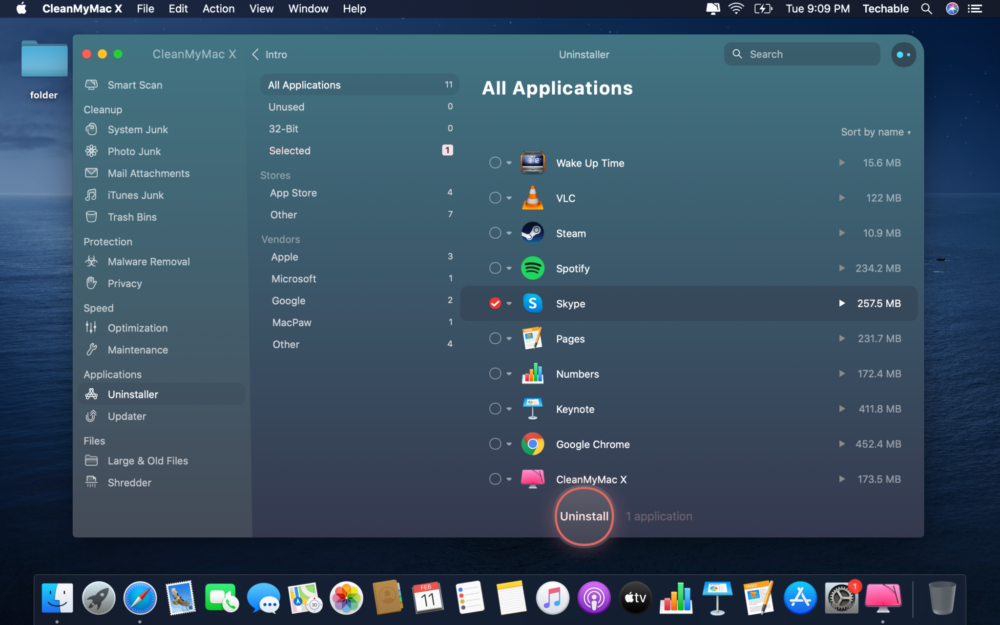
And that’s it!

 Ronald Uy
 Leah H. Blanchard



 Adrienne Blanier


0 Comments