
 Jon Brax
The macOS Mojave is Apple’s latest operating system that offers a sleek assortment of new and finest features that you’ll ever find. Seeing that there are quite a lot of them and you don’t know where to start, we’ve prepared this article and included some of the most popular OS Mojave 2019, tips/ tricks for the MacBook Pro/ Air 2019, iMac and other desktop models to help you get started.
1. Use Stacks To Quickly Organize Your Desktop
It’s no good having a cluttered up desktop with stuff that you don’t need and when it’s preventing you from finding important files and documents. Luckily, macOS Mojave has just the answers you need to get everything neatly organized thanks to its Stacks feature.

Stacks makes it easier for users to gather their files into easy-to-manage groups based on the file type on the desktop (even the dock). Now all of the images on your desktop can be grouped together quickly and be separated from your documents. For better control, you can also group files together using tags.
To open a Stack, just click it and the files will appear immediately on your desktop. You can even scrub through the Stacks to flip through the files, also known as thumbnails. You can use two fingers on the trackpad to do this.
2.Use Dark Mode For A Pleasant Work Night
The dark mode is an amazing feature in which the operating system includes a dark color scheme option. Apart from giving your computer screen a good look, it has been designed by Apple to help people focus better on their work.
The Dark mode can be even more comfortable to work with at night or in low-light conditions as the color scheme would be easier on your eyes. And the best part about this feature is that it’s easy to toggle on and off. All you have to do is just open System Preferences > General and select either ‘Light’ or ‘Dark’ appearance.
3.Taking Screenshots Is Easier
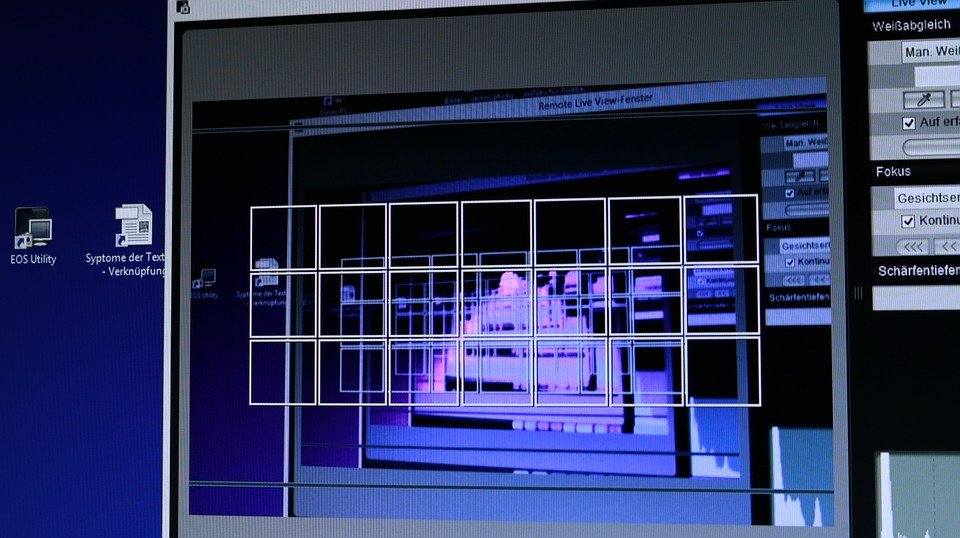
MacOS Mojave has also made it easier for users to take screenshots. By pressing Command + Shift + 5 on your keyboard, a new Screenshot tool opens up. Once the screenshot has been taken, you can quickly open it and add text and doodles into it.
What’s more, is that it’s extremely easy to forward screenshots as an email or message, along with advanced options for hiding your mouse cursor and more.
4. Quick Actions Let You Work Faster In Finder
For years, Finder has been a great tool for the macOS, but now it’s greatness has been further accelerated with macOS Mojave. When using Gallery View to scroll through your files, you can see previews of files without having to open them and see if it is the one you’re looking for.
With the Preview Pane (Command + Shift + P on your keyboard), you can see information about the files and can edit them directly in Finder using Quick Actions. What this means is that you can rotate images, edit videos, combine files into a single PDF file and other stuff without necessarily opening another app.
5.Stronger Passwords
You want more control over your privacy as you browse online? No problem! With macOS Mojave, Safari automatically suggests strong and secure passwords when you sign up for an account online. Not only will these passwords be absolutely unique, but they’ll also be very tough to crack and impossible to guess.
As you know, using only one password is very risky as a hacker only needs to guess it once to comprise all the accounts that use it. So to combat this dilemma, macOS Mojave’s Safari will alert you if you have used the same password for other websites, enabling you to change it to a more secure one.
6.Use Website Icons To Keep Better Track Of Your Open Tabs

The Safari 12 is the latest web browser by Apple that is already installed into Mojave once the moment the operating system first boots up. This web browser offers an abundance of new features including, as we discussed in the previous point, password suggestions to keep your passwords secure, and an alert from Safari if you’re using the same password for another website.However, one of Safari’s best new features is the support for website icons that display when you have the website open in a tab. These icons are easy-to-identify, let you see which of the websites are open and allow you to quickly jump between the sites. It’s a great feature especially if you have multiple tabs opened at once.
In order to turn this feature on, just open Safari Preferences and go to ‘Tabs’ then select “Show website icons in tabs.”
7.Continuity Camera Is Better Than The Scanner
Another awesome feature of Mojave is the Continuity Camera, which is especially suited for people who are always scanning photos and documents. It lets you use your iPhone to take pictures or scan images and documents, which instantly appear on your Mac system.
However, one of Safari’s best new features is the support for website icons that display when you have the website open in a tab. These icons are easy-to-identify, let you see which of the websites are open and allow you to quickly jump between the sites. It’s a great feature especially if you have multiple tabs opened at once.
In order to turn this feature on, just open Safari Preferences and go to ‘Tabs’ then select “Show website icons in tabs.”
7. Continuity Camera Is Better Than The Scanner
Another awesome feature of Mojave is the Continuity Camera, which is especially suited for people who are always scanning photos and documents. It lets you use your iPhone to take pictures or scan images and documents, which instantly appear on your Mac system.
Right-click in Finder, Notes, Messages, Keynote, Pages or Numbers and you will see a new option in the menu that says “Take a Photo” or “Scan Document”. Just select that and take a shot with your iPhone. It’s a real time saver for lots of users.

 Ronald Uy
 Leah H. Blanchard
 Diane
Diane

 Adrienne Blanier


0 Comments