
 Ronald Uy
In today’s digital age, device integration is essential for seamless functionality. Apple sets the standard with its ecosystem, exemplified by the effortless connection between AirPods and iPads. However, issues may arise preventing this connection, hindering your audio experience. Let’s delve into how to connect AirPods to iPad and address any potential obstacles along the way.
Several factors can hinder the connection between AirPods and an iPad. One common issue is outdated software on either device, causing compatibility issues. Bluetooth interference from nearby devices or a low battery level in either the AirPods or the iPad can also disrupt the connection. Additionally, physical obstacles or signal obstructions may interfere with the Bluetooth signal, preventing the devices from pairing. These challenges can impede the seamless integration users expect, requiring troubleshooting steps to resolve.
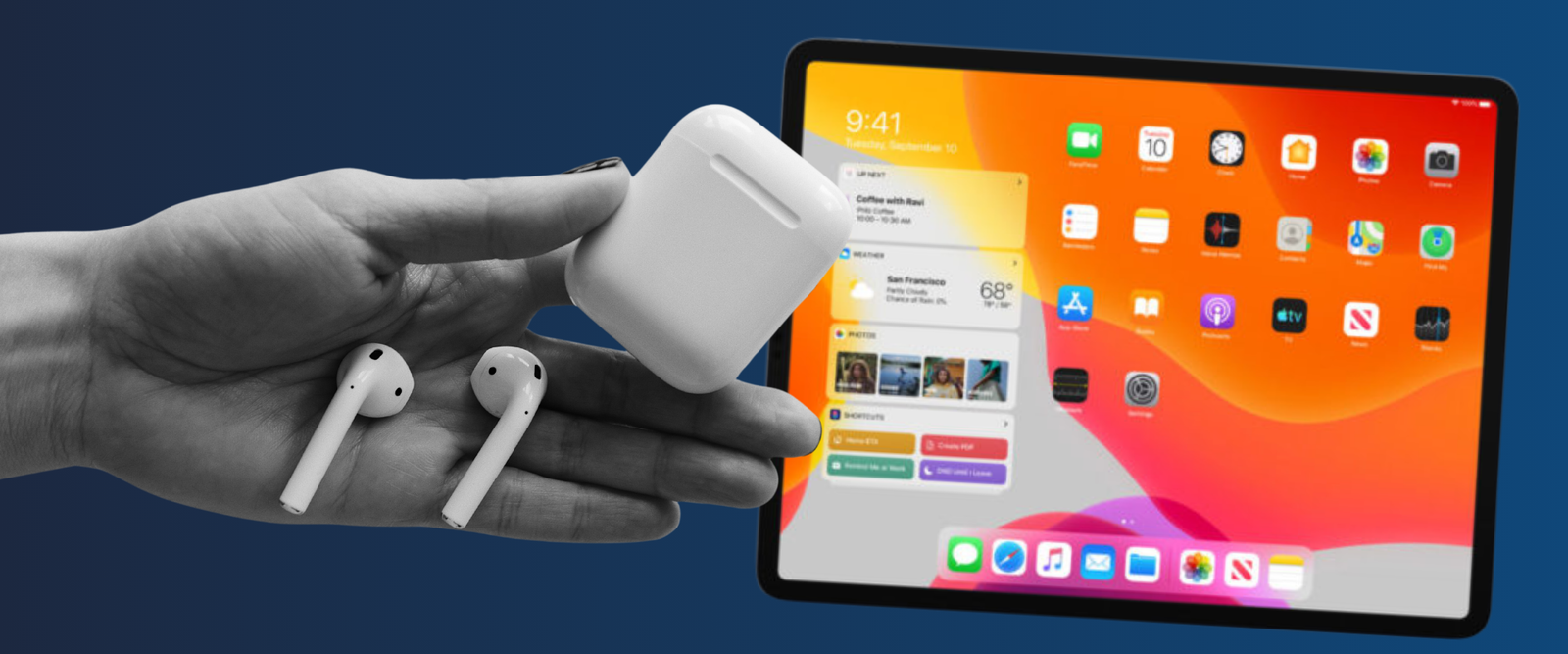
Step-by-Step Guide to How to connect AirPods to iPad
Turning on Bluetooth on Your iPad
To connect your AirPods to your iPad, the first critical step involves enabling Bluetooth on your iPad. Bluetooth is the wireless technology that allows your iPad to communicate with your AirPods. Here’s how to turn it on:
- Open the Settings App: Locate the “Settings” icon on your iPad’s home screen and tap it to open the app. The icon typically looks like a set of gears.
- Access the Bluetooth Settings: Inside the Settings app, you will see a list of options on the left-hand side. Scroll until you find “Bluetooth” and tap it. This action will take you to the Bluetooth settings page.
- Enable Bluetooth: On the Bluetooth page, you will see a toggle next to “Bluetooth” at the top. If the toggle is gray, Bluetooth is turned off. Tap the toggle to turn Bluetooth on. It will turn green to indicate that Bluetooth is active on your iPad.
Connecting the AirPods for the First Time
Once you’ve enabled Bluetooth on your iPad, you’re ready to connect your AirPods. This initial setup process is designed to be straightforward and quick, ensuring you can start enjoying your audio experience without delay. Here’s how to connect your AirPods to your iPad for the first time:
- Open the AirPods Charging Case: Begin by taking your AirPods’ charging case and opening the lid. Make sure your AirPods are inside the case during this step. The case must be open because this signals the AirPods to enter pairing mode, which allows your iPad to discover them.
- Hold the Case Close to Your iPad: With the case open and the AirPods inside, bring the case close to your iPad. The proximity helps your iPad detect the AirPods more efficiently, facilitating a smoother pairing process.
- Wait for the Setup Animation: Shortly after you hold the AirPods close to your iPad, a setup animation should appear on the iPad’s screen. This animation indicates that your iPad has successfully detected the AirPods and is ready to begin the connection process.
- Follow the On-Screen Instructions: The setup animation will be accompanied by a series of on-screen instructions guiding you through the rest of the connection process. These instructions are typically straightforward, often requiring just a few taps. You’ll be prompted to press “Connect” to establish the connection between your AirPods and iPad. If you’re using AirPods Pro or AirPods with Siri capabilities, you may also be guided through setting up “Hey Siri” at this time.
- Complete the Connection: After following the on-screen instructions and tapping “Connect,” your AirPods will be connected to your iPad. The final step usually involves closing the setup animation by tapping “Done.”
If you encounter common Airpod issues when connecting to your iPad. You can also check our FAQ section below.
Frequently Asked Questions
Can I connect my AirPods to multiple devices at the same time?
AirPods can’t be connected to multiple devices simultaneously in the traditional sense. However, with Apple’s iCloud and the H1 or W1 chip in AirPods, they can quickly switch between devices logged into the same Apple ID. This means you can easily move from listening on your iPad to your iPhone without manually disconnecting and reconnecting.
What do I do if my AirPods won’t connect to my iPad?
If your AirPods won’t connect to your iPad or one side of your AirPod is not working, ensure that both your AirPods and iPad are sufficiently charged Restart your iPad, and try resetting your AirPods by holding the setup button on the back of the charging case until the status light flashes amber, then white. If issues persist, check Apple’s support site or contact customer service for further assistance.
How can I check the battery life of my AirPods on my iPad?
In cases when one Airpod die faster, check the battery life of your AirPods, open the case near your iPad with the AirPods inside. The battery status should appear on your iPad’s screen. You can also add the Batteries widget to your iPad’s Home screen or Today View for a glance at your AirPods’ battery life.
Can I use one AirPod at a time?
Yes, you can use one AirPod at a time. This is useful for extending battery life or for staying aware of your surroundings. When one AirPod is used, audio will automatically switch to mono mode to ensure you can hear your content properly.
How do I customize the double-tap functionality on my AirPods?
To customize the double-tap functionality on your AirPods, go to the Bluetooth settings on your iPad, find your AirPods in the list, and tap the “i” icon next to them. Here, you can assign different actions for double-taps, such as play/pause, skip forward, or activate Siri.
Are AirPods waterproof? Can I wear them in the rain?
AirPods are not waterproof. They are water and sweat-resistant to a degree, but it’s not recommended to wear them in heavy rain or during activities where they might be submerged in water. The AirPods Pro have a higher degree of water resistance than the standard AirPods, but they are still not waterproof.
How do I clean my AirPods and charging case?
Clean your AirPods and charging case with a soft, dry, lint-free cloth. If necessary, you can slightly dampen the cloth with isopropyl alcohol. Avoid using water or other liquids directly on the AirPods. Do not insert anything into the charging ports.
What should I do if I lose one or both of my AirPods?
If you lose one or both of your AirPods, you can use the Find My app to locate them, provided they are within Bluetooth range of any of your iOS devices signed into iCloud. The app can play a sound to help you find them if they’re nearby or show you their last known location on a map.

 Leah H. Blanchard
 Diane
Diane


 Adrienne Blanier


0 Comments