
 Diane
Diane
Let’s be real – most computer components rarely last forever, and a MacBook battery ( Pro & Air) is no exception. Its cycle shortens whenever you charge it, and you will experience a faster battery drain. Once you reach your maximum charge cycle count, be ready to experience issues in your battery. This is normal for any laptops out there. Among the common problems that may arise are as follows: 1. The battery isn’t charging. 2. Battery won’t charge and complete 100% 3. Mac battery run time is low and is draining quickly. There are times when you might be in a very important meeting, holding your Macbook and making your way up for the presentation, and lo and behold; the battery is dying fast. You have nowhere to plug your device in, and this is the worst possible situation one can be in, and the only thing that comes to mind is: how do I stop my mac battery from draining? But no matter what the situation is, there is always a way, and it is possible to squeeze more battery time for your Macbook. One of the quickest ways to do this is by going to the settings and looking for the Energy Saver panel in Systems Preferences. It can be used to dim and turn off the display. But to make your battery saving more effective, we have come up with other tips to help you improve battery life.
How to Check your MacBook Battery
Battery Percentage
Before we dig deeper into the different ways of improving battery life, it would be wise to first know how to check the charge level. It will give you a baseline of how your current laptop usage affects battery life. Checking gives you an idea of your battery’s performance. Once you have done this, it will be easier to assess how much you need to improve. To check Battery Percentage, click on the battery icon in your menu bar, then select “Show Percentage.” You can now check battery levels and compare how your usage is affecting battery usage.
Battery Condition
Once familiar with checking the Battery Percentage, it’s now time to check your battery’s condition. This is simple. Just hold the Option key, then click the battery icon you see on the menu bar. Four conditions may show:
- Normal – The battery is working normally.
- Replace Soon – The battery is still working normally. However, it already holds less charge compared to how it did when it was still new.
- Replace Now – The battery is still working normally; however, it already holds less charge significantly than it did when it was still new. Even with this status, you can continue using your battery until replacement. That will not harm your MacBook.
- Service Battery – The battery is no longer functioning normally. There is a possibility that you may not notice a change in its behavior because of the lesser number of charges that it holds. When this happens, bring your battery for servicing.
Based on Apple’s press release, MacBooks maintain 80% of its original capacity after 1,000 charge cycles. To check and monitor your current count, hold the “Option” key, then click the “Apple” icon. Afterward, go to System Report then Power on the left panel. That’s where you will see the Cycle Count under Health Information. Now that you know what condition your battery is currently in, you can follow the tips on saving mac battery.
How to Improve MacBook Battery Life
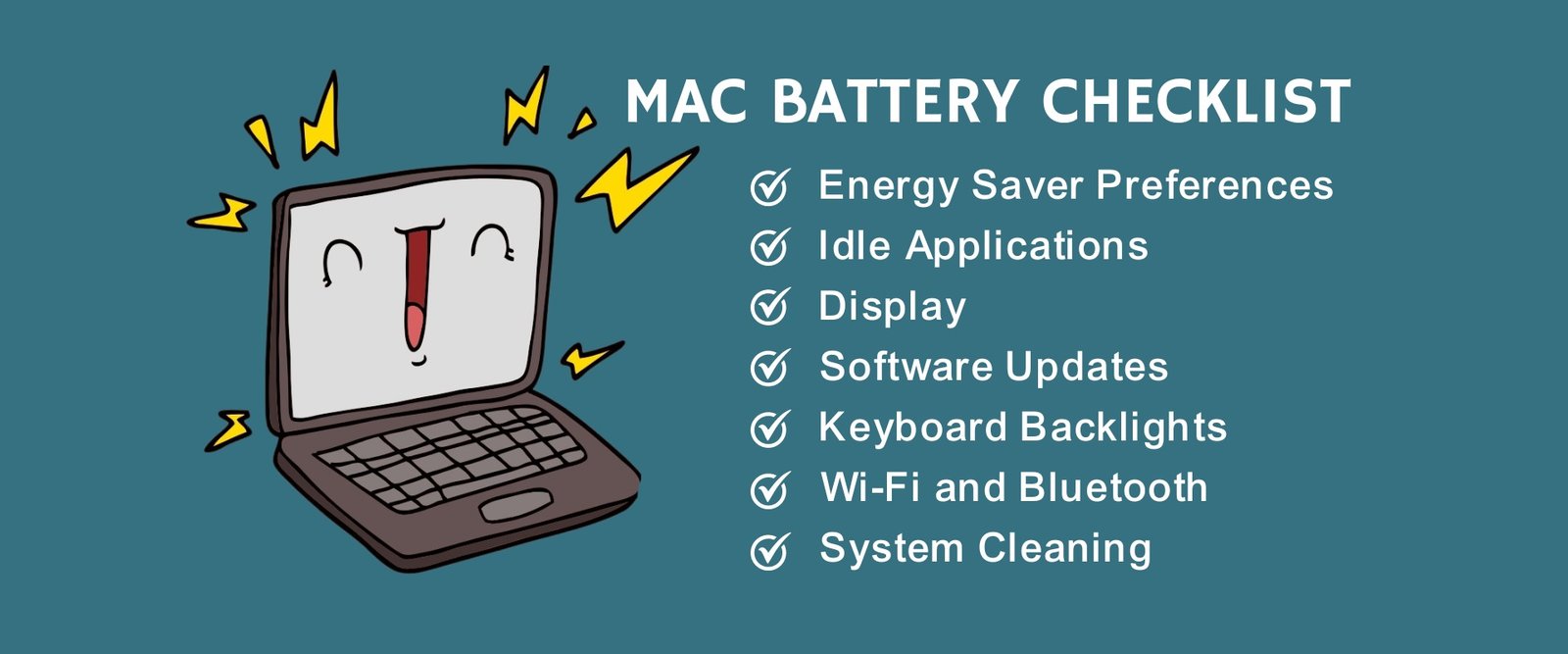
Energy Saver Preferences
Truth be told – MacBooks can be a power glutton. Good thing, rationing this can be done using simple commands. To do this, go to the Energy Saver section of your computer. Once you have found the Energy Saver function, click Apple + System Preferences + Energy Saver. Turn on the Automatic graphics switching. Select Put the hard disks(s) to sleep when possible as well. If you are not connected to a network, you can turn off the Wake for network access to spare more energy and power. These little tweaks help you redeem your dying battery’s life to some extent.
Closing Idle applications
Some applications continue to consume system resources even if you do not use them. That will greatly affect the performance of your MacBook, as well as its battery life. This only shows the importance of closing programs once you are done with them. You can do this by choosing the Command and Q keys all at the same time. If this doesn’t work for you, you can go to the top menu bar and select the Quit option. You can also have an idea of the energy an application eats up. Monitor this by opening the Activity Monitor then Energy tab. You can open the Applications folder + Utility folder too. Then, click Activity Monitor and go to the CPU tab. The drop-down menu has All Processes. That will sort the apps with the CPU percentage they take. As you analyze, find the app that consumes a great sum of power. You can press the Quit Process if that works for you.
Display
The brightness of your display is one of the biggest energy guzzlers of your battery. While maximizing brightness is the best way to your Mac retina display, the drawback is shorter battery life. The ideal setting is to run your display at around twenty percent. It may appear awfully dim than usual, but you will surely boost the battery life of your Mac significantly. If you have a touch bar, look for the Display icon, then drag until the indicator shows that you are already around twenty percent. If you don’t have this function, find the Display icon and then drag the brightness slider until you reach twenty percent.
Software Updates
Updating your Mac to the latest OS is one of the best ways to get fine battery life. Check if yours is current. Go to System Preferences + Software Update. Once you have seen this function, you can also click the field that says Automatically keep my Mac up to date. Just choose the Advanced button to get updates automatically. That will allow your system to download or install upgrades automatically.
Keyboard Backlights
Backlit keyboards indeed help while typing in the dark. However, it can drastically drain your battery life too. To avoid this, you can set your keyboard backlights to turn off automatically after a long period of inactivity. Just go to System Preferences + Keyboard. Once you are on the Keyboard tab, you can select the Turn keyboard backlight off after certain minutes of inactivity. The range to choose from goes around 5 seconds to 5 minutes.
Wi-Fi and Bluetooth
If you are not using your Bluetooth or Wi-Fi, turning them off will save you energy too. Disable radio to spare more battery. Do this by clicking the Bluetooth icon in your menu bar. Select the Turn Bluetooth Off. You can also head to System Preferences + Bluetooth. Click the Turn Bluetooth Off to finalize the process.
System Cleaning
Your Mac is like a car. When it is packed with a heavy load, it takes more effort to run and drive. The same is also true with your computer. Hence, it is a good idea to optimize regularly to put less strain and battery power. To do this, turning to CleanMyMac X can be a good idea. Just launch the Maintenance Scripts and allow them to do the system optimization automatically. This will impact your computer performance that will, in turn, improve the battery health of your MacBook.
Concluding Remarks
Throughout the years, Apple has been able to improve its MacBook’s battery life by using two strategies; developing better batteries and making battery use more efficient. But even with all these improvements, how long your battery lasts still depends on how you use them, whether it’s a Macbook Pro or MacBook Air. Even the best batteries eventually start to wear out and die with use and age. This fact has not been lost with the people at Apple, and major improvements have been introduced with the latest line of MacBooks. It has resulted in the development of more efficient processors and other major components. Even though Apple has now put in better hardware and the battery use is smarter, it is still far from perfect. It never hurts to follow the above tips to avoid your MacBook battery draining fast and preventing any embarrassing situation.

 Ronald Uy
 Leah H. Blanchard



 Adrienne Blanier


0 Comments