
 Ronald Uy
Wearing a face mask has been a part of our new normal since the pandemic started and with the rate of how things are going, it seems like we need to get used to it. As a matter of fact, it is a requirement in some parts of the world, especially when going outdoors. That’s how serious it is. If you are an iPhone X (and up) user, you have surely struggled to unlock your phone with a cover on your face. It’s frustrating to discover that your FaceID can’t be reliable at all times. We get you. Good thing, we have listed down tricks for you to solve this issue.
Before we go to the solution, these are the few things you’ll need to start going:
- An iPhone with the FaceID feature
- An Apple Watch (Series 3 and up)
- Updated iOS 14.5 on iPhone and watchOS 7.4 on Apple Watch
The FaceID Solution

The iOS update in April 2020, the iOS 13.5, is the first solution you can try. This update allows you to swipe your iPhone upwards and when that happens, there is no need for you to depend on your FaceID anymore since you can just enter your passcode manually.
However, we understand that there are instances when you are outside and so typing your passcode can be a brawl. It’s just not possible all the time. In this case, you need your Apple Watch.
The Use of Apple Watch
Expected to arrive around March or April in iOS 14.5, Apple has an answer to our ever-changing lifestyle and that is to enable Apple Watch to unlock a smartphone with a partial face scan. Yes, you will be able to use your FaceID now by just showing a little portion of your face.
Set It Up!
To enjoy this feature, you need an Apple Watch of course. It has to run a 7.4 WatchOS. You can have this in beta now while we wait for its release in the spring. Make sure that you are wearing it and that it is not locked. Your iPhone also needs to run an iOS 14.5.
Don’t forget to enable your phone passcode as well. If you haven’t set yours yet, just go to Settings – Passcode and you will be able to complete this in no time.
As for your Apple Watch, do not forget to turn on Wrist Detection for it to work.
Let’s go through the process step-by-step:
- Tap the Settings app of your iPhone or iPad Pro, and then select “Face ID & Passcode”. You might have to enter your set passcode in completing this.
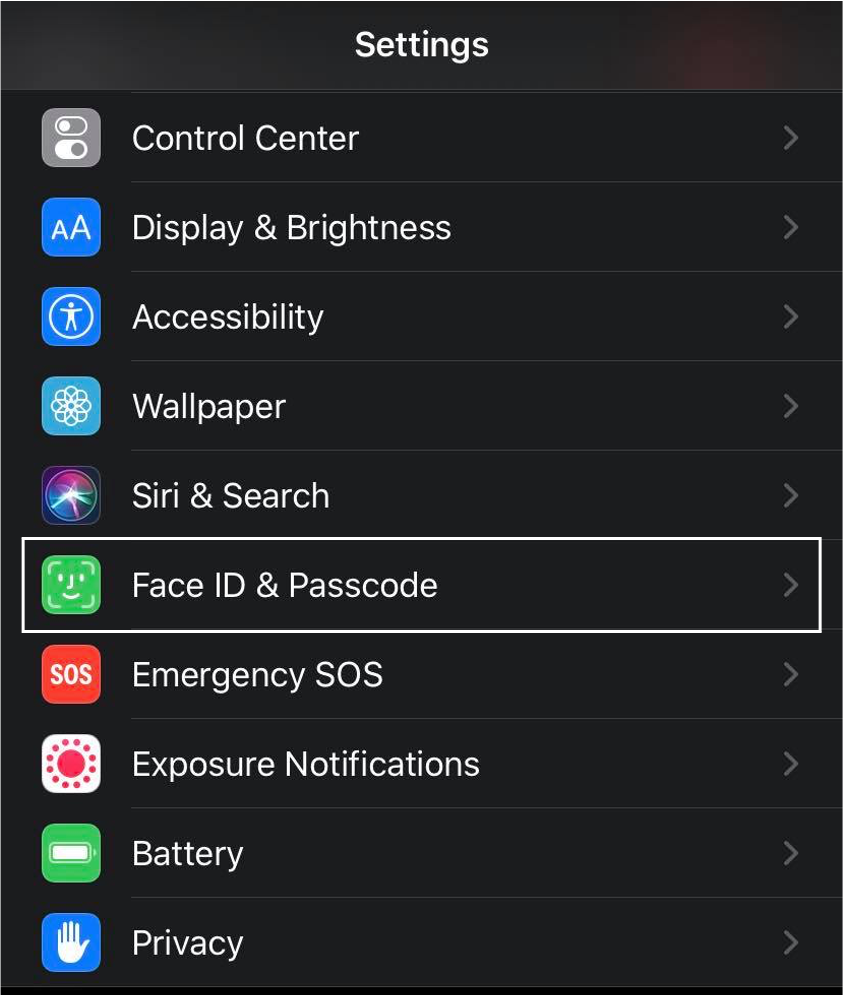
- Go to the “Set Up an Alternative Appearance”.
- Get your mask and fold it in half to cover one side of your face. There will be instructions on the screen to complete the setup. Follow them.
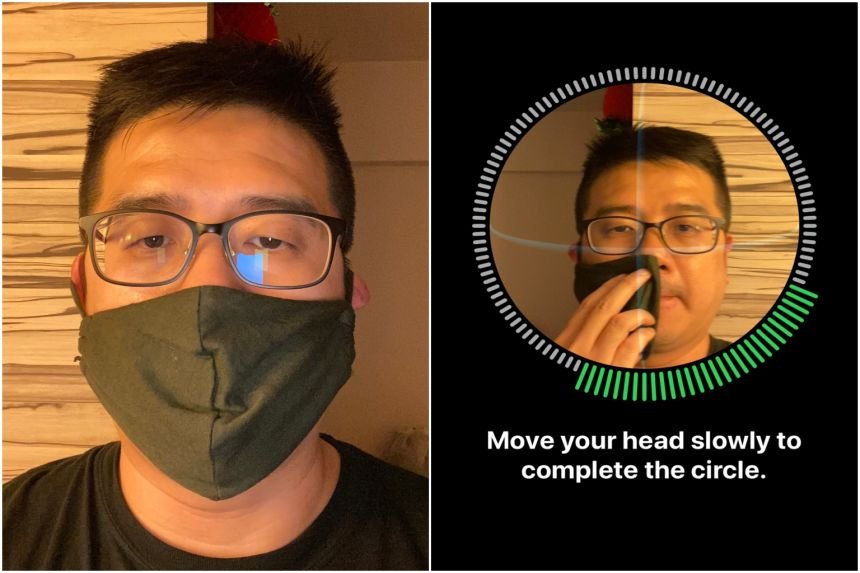
Take a look at this as a guide!
Image Source: https://www.straitstimes.com/tech/smartphones/unlock-your-iphone-with-face-id-while-wearing-a-mask - It is fine when you get a warning from your device saying that your face is blocked or obstructed. When you receive this prompt, move your mask father from the center of your face and see if it works.
- Move your head in a circle and follow the process that you see on the screen. This is almost the same as the way you set up your FaceID. Just hold the mask and let it stay in its position.
- Wear your mask when the Face ID scans are done and try if the setup pushes through. If it does, and then it is a success. If not, go back to step 1 and set the feature again. Repeat until it works.
Before you go
It’s important to remember that there are conditions to consider in order for this feature to kick in. Take note of the following:
- Face ID can only detect a partially covered face once set up.
- Wear your Apple Watch and keep it unlocked.
- Enable your passcode through your watch and turn on wrist detection. If you haven’t this is usually disabled by default setting.
We are hoping that this solution ends your FaceID struggle. Let us know if it is successful! For more news and articles like this, always tune in to Techable!

 Leah H. Blanchard
 Diane
Diane


 Adrienne Blanier


0 Comments